
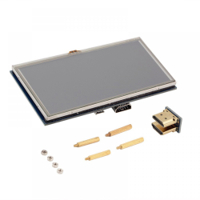
شاشة رازبيري باي حجم 5انج side image
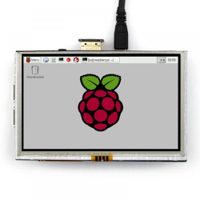
شاشة رازبيري باي حجم 5انج side image
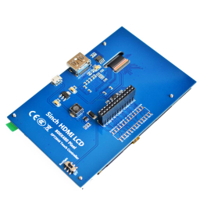
شاشة رازبيري باي حجم 5انج side image
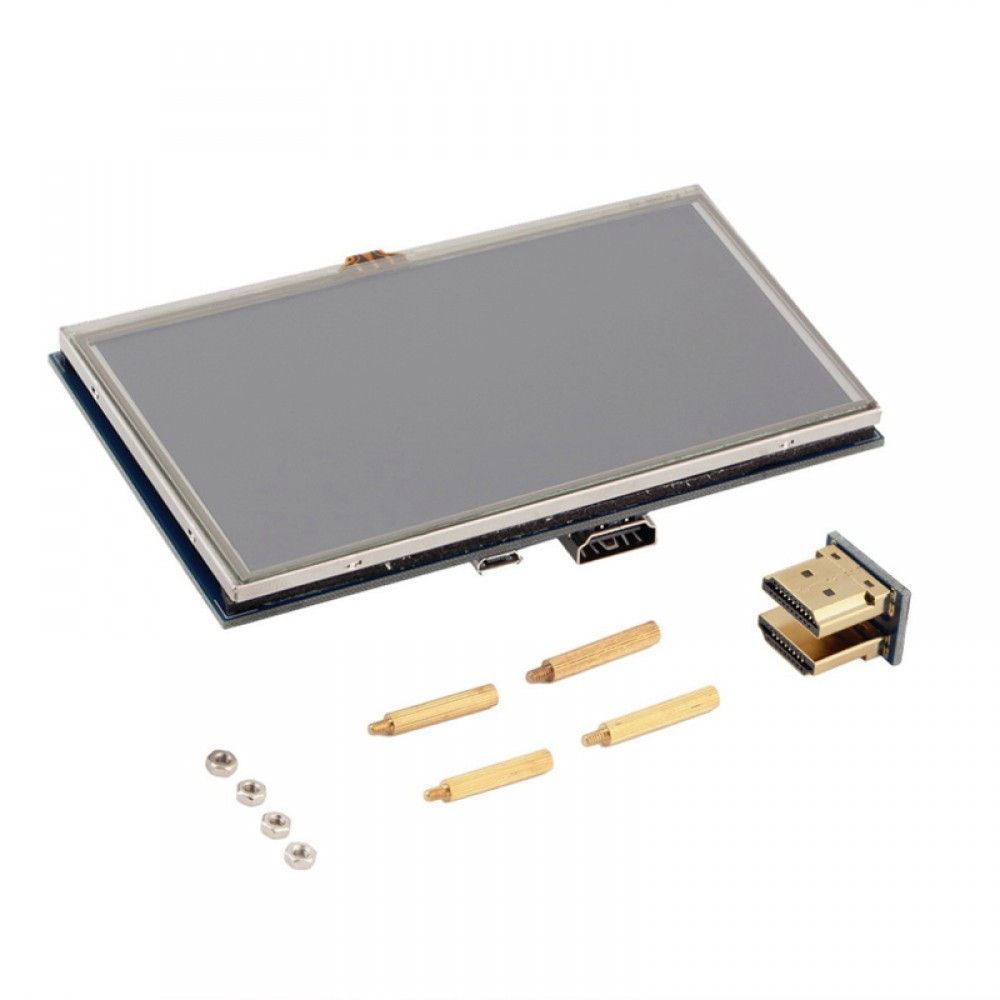
شاشة رازبيري باي حجم 5انج
IQD 58,500
الوصف
This display can be mounted on a Raspberry Pi 1, 2 or 3 via an HDMI connector, but requires additional driver installation.
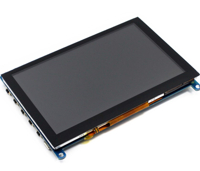
The display has a resolution of 800*480 pixels and is diagonally 5 inches. On top of the display is a resistive touchscreen mounted for which a small stylus is included.
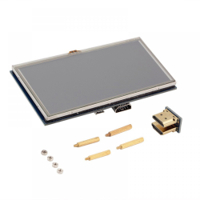
An example is visible in the images.
Specifications:
LCD diagonal: 5 inches (12.7cm)
Resolution: 800 x 480 pixels
Button to enable/disable backlighting
Resistive touchscreen (XPT2046 controller)
Uses standard HDMI interface (coupling piece included)
Compatible with the Raspberry Pi 1, 2 and 3
Can also be used as a PC monitor (power supply required via the micro USB connector)
Works with Raspbian, Ubuntu, Kodi and Windows 10 (IOT)
Dimensions: 121.11 x 77.93 mm
Spacers and nuts included (see images)
For more information on the LCD screen, download the zip file with manuals under the tab "Downloads and Links".
We have only tested the display in combination with a Raspberry Pi 3B with the Raspbian operating system according to the following manual:
To install the driver, you need:
- Raspberry Pi 2B or 3B with Raspbian installed (via NOOBS!)
- The 5 inch LCD screen
- An internet connection on the Raspberry Pi
- A keyboard and mouse (connected to the Raspberry Pi)
- An external display with HDMI that is plug-and-play compatible with your Rasperry Pi (e.g. a TV or monitor)
- A backup of your Raspbian operating system if it goes wrong! (especially the boot/config.txt file!)
Note:The installation of the driver overwrites the boot/config.txt file so that the display works correctly.
If you have previously made adjustments to this file, you will have to add these adjustments again after installation.
STEP 1 - Install the driver
1. Start the Raspberry Pi in Raspbian (with TV/monitor, mouse and keyboard connected)
2. Open the terminal and download the following driver package with the following command:
git clone https://github.com/goodtft/LCD-show.git
3. Set the read/write settings for the folder with the following command:
chmod -R 755 LCD show
Note: Go directly to step 9 if you did NOT install Rapbian via NOOBS! (but used the standard image)
4. Go to this folder in the driver package:
cd ./LCD-show/usr
5. Adjust the cmdline.txt file in the driver package (otherwise the RPi will stop running!). Use the following command:
nano cmdline.txt
6. Adjust the "root =/dev/mmcblk0p2" section in the text file to "root =/dev/mmcblk0p7" (change the "2" to a "7")
7. Once adjusted press the "Ctrl + X" key combination, then the "Y" key followed by the Enter key (overwrites the file and saves it with the adjustment)
8. Go back to the root:
cd
9. Go to this folder in the driver package:
cd ./LCDshow
10. Start the driver with the following command:
./ LCD5 show
The Raspberry Pi will now restart and Raspbian will switch to the LCD screen as the main screen at startup.
To restore the default configuration, type and run the following command's in the terminal:
cd ./LCD-show
sudo ./LCD-hdmi
Note: After switching back to HDMI, the resolution may not be correct. We do not have a solution here at the moment except for restoring the backup.
STEP 2 - Calibrate the touch screen (optional)
The touchscreen will work fine at the moment, but perhaps it is still not accurate enough. You can do a calibration for this.
To do this, download the zip file with manuals under the tab "Downloads and Links". Extract the zip file and open the pdf file "How to calibrate the touch screen (En) .pdf".
Follow the steps described in this document to perform the calibration.
التاكات
منتجات مشابه
شاشة 7 انج نوع اي بي اس مع لمس سعوي ودقة 1024*600 من شركة ويف شير
IQD 105,000
شاشة نوعية شكل الورق الالكتروني حجم 2.66 انج مع درايفر شيلد
WaveshareIQD 48,000
شاشة دائرية مولونة تربط مع الاردوينو وباقي المتحكمات
WaveshareIQD 30,000
شاشة اولد حجم 2.42 انج بدقة 128 في 64 بكسل من شركة ويف شير
WaveshareIQD 30,000
شاشة اولد حجم 1.54 انج بدقة 128 في 64 بكسل من شركة ويف شير
WaveshareIQD 27,000
سفن سكمنت شاشة مكيانيكة والكترونية رقمين
IQD 2,000
سفن سكمنت شاشة مكيانيكة والكترونية
IQD 1,250
شاشة كرافكل صورية بابعاد 240 في 140 بكسل
IQD 31,000
شاشة حجم 1.7 انج اي بي اس بدقة 240*280 و262 الف لون
WaveshareIQD 22,000
شاشة رازبيري باي حجم 7 انج بدقة 1024*600
IQD 69,000
شاشة 7 انج بمنفذ تماثلي اي في
IQD 48,000
شاشة 10 انج من شركة ويف شير للرازبيري باي مع امكانية اللمس المتعدد
IQD 195,000
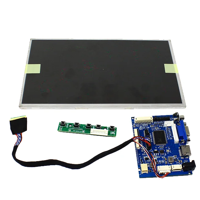
شاشة حجم 10 انج للرازبيري باي بدقة 1280*800 مع بورد منافذ متعددة
IQD 120,000
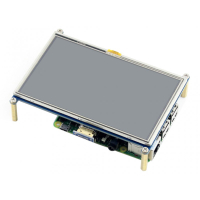
شاشة رازبيري باي حجم 5 انج لمس مقاومة من شركة ويف شير دقة 800*480 بكسل
IQD 70,000
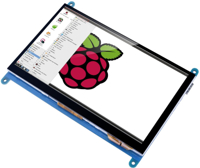
شاشة ويف شير رازبيري باي لمس بحجم 7 انج بدقة 1024* 600 بكسل
IQD 85,000
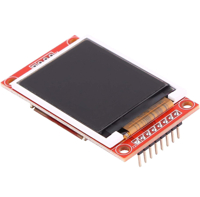
شاشة تي اف تي حجم 1.8 انج بدقة 128*160 بكسل
IQD 8,500
شاشة اولد حجم 1.5 انج سيريل
IQD 21,000
شاشة اولد حجم 1.3 انج
IQD 7,250
شاشة سفن سكمنت حجم 5انج حمراء
IQD 8,500
شاشة سفن سكمنت حجن 1.8انج حمراء
IQD 2,500
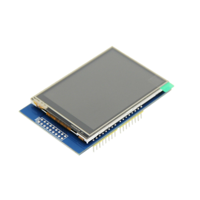
شاشة عرض للاردوينو اونو وميكا لمس حجم 2.8 انج
IQD 21,000
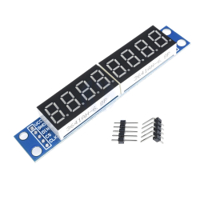
شاشة لغرض الارقام ثمانية مع درايفر MAX7219
IQD 3,000
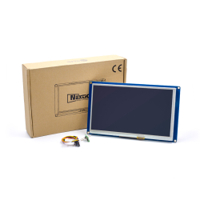
شاشة لمس HMI حجم 7 انج
IQD 170,000
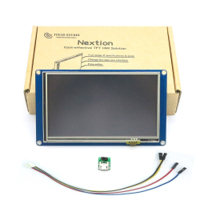
شاشة لمس HMI حجم 5 انج
IQD 135,000
شاشة حجم 2.4 انج لمس مع spi توصيل
IQD 14,000
شاشة حجم 1.44 انج
IQD 8,000
شاشة رازبيري باي لمس بحجم 7 انج
IQD 72,000
شاشة رازبيري ياي حجم 7 انج بدقة 800*480
IQD 61,000
شاشة رازبري باي بدقة 800*400 بحجم 5انج من شركة ويف شيرمع خاصية اللمس السعوي
IQD 85,000
شاشة رازبيري باي حجم 5انج
IQD 58,500